Need several photos, screenshots or scanned pages in a single file? This tool lets you combine images into one PDF right in your browser: each image on its own A4 or US Letter page, in the order you choose. Crop and rotate pages first if you need to, then download one tidy PDF — no signup, no watermark and no upload.
How to Combine Images into a PDF in 4 Steps

1. Add your images
Drop files on the board, click Choose images, or paste a screenshot with Ctrl+V (⌘+V on a Mac). JPG, PNG, WebP, HEIC and other image types can be mixed.

2. Set the page order
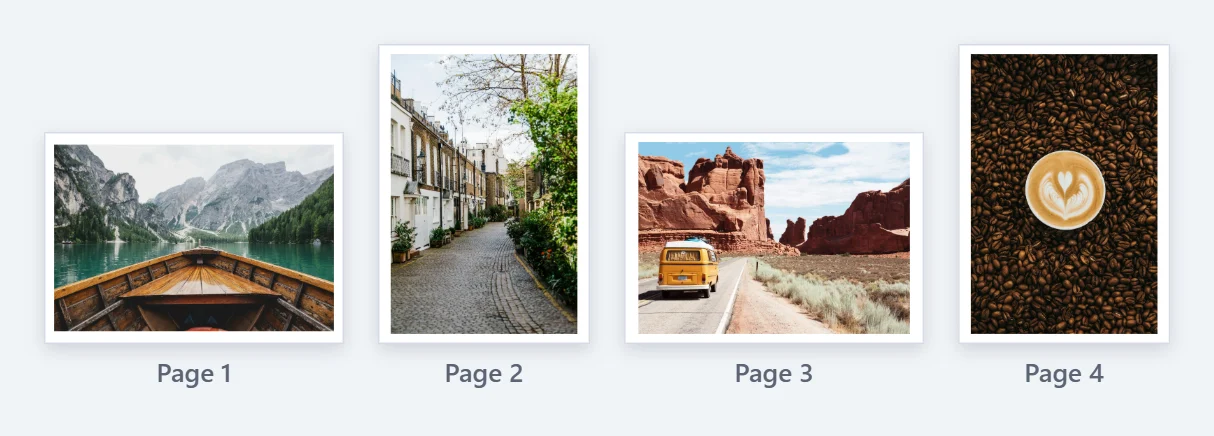
Frame 01 becomes page 1. Drag a thumbnail in the film strip to move a page, or click the × on a frame to remove it.

3. Choose page size and margin
In Export, pick A4, US Letter or Fit to image, and a margin of None, 10 mm or 20 mm. Pages turn sideways by themselves for wide images.

4. Download the PDF
Click Download (or press Ctrl+S). The summary next to the button shows the page count and estimated file size before you save.
One Page per Image, or All on One Page
Most people want One page per image: receipts for an expense claim, pages of homework, a set of scanned documents or photos to send as one file. Each image is scaled to fill the printable area of its page and centered, so nothing is cropped.
Sometimes one page is enough. Line the images up with Side by side, Vertical or Grid, then choose Merged image on one page: the layout you see on the board, with its gap, border and labels, becomes a single PDF page. It is a quick way to put both sides of a card, or a few small photos, on one printable sheet.
A4, US Letter or Fit to Image?
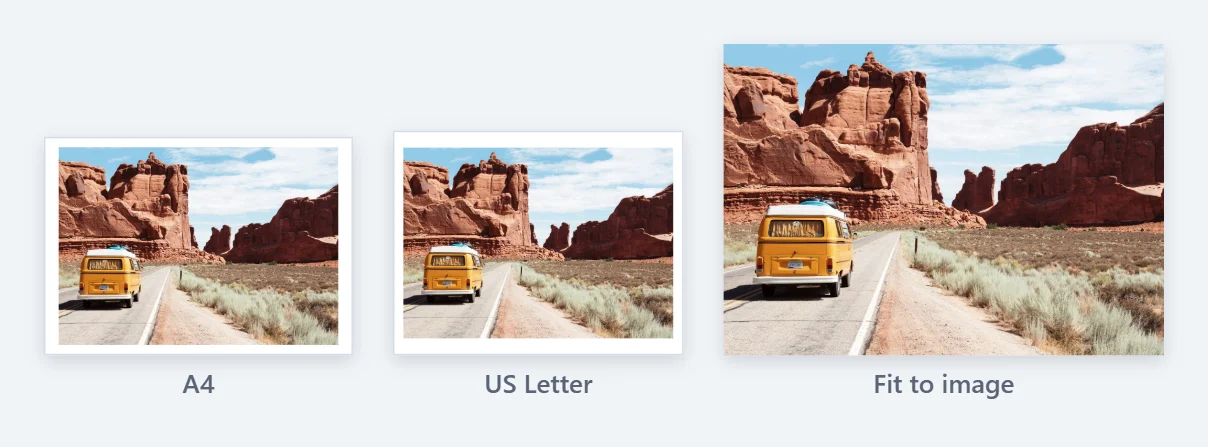
- A4 (210 × 297 mm) is the standard paper size almost everywhere outside North America.
- US Letter (8.5 × 11 in) is the standard in the United States and Canada.
- Fit to image makes every page exactly the shape of its image, with no white margins — best for PDFs that are only viewed on screen or uploaded to a form.
A4 and US Letter pages turn sideways for images that are wider than they are tall. A 10 mm margin keeps the image clear of the edge most home printers can't reach; choose None if the PDF is only for the screen.
How Big Will the PDF Be?
We combined the four photos shown above (1600 × 1067 to 1067 × 1600 px, 1.7 MB together as JPGs) on A4 pages with a 10 mm margin, in Chrome:
| Quality | One page per image (4 pages) | Merged 2 × 2 grid (1 page) |
|---|---|---|
| 90 | 1.9 MB | 1.6 MB |
| 80 | 1.6 MB | 1.1 MB |
| 70 | 1.1 MB | 902 KB |
At quality 90 the PDF is a little larger than the original photos, because each one is saved again as a high-quality JPG. Quality 80 already comes in under the originals, and 70 is a good choice when an upload form has a size limit. Page size and margin make no difference to the file size: every image keeps all its pixels, so the PDF stays sharp when you zoom in or print.
Photograph Documents So They Come Out Sharp
A phone photo of a receipt or a worksheet makes a perfectly good PDF page if you take it with a little care:
- Lay the page flat on a dark, plain surface, so the edges stand out.
- Use daylight or bright room light, and keep your own shadow off the paper.
- Hold the phone straight above the page and fill the screen with it.
- Tidy it before export: click the image, then Crop to the page, Rotate if it's sideways, or Trim edges to remove plain borders.
Edits only change the copy on the board, never your original photos.
Printing the PDF at the Right Size
Open the PDF and choose Actual size or 100% in the print dialog, so the printer doesn't shrink or enlarge the page. Make sure the paper size in the print dialog matches the page size you picked — an A4 PDF printed on US Letter paper gets scaled down or cut off at the bottom.

Your Files Never Leave Your Device
Receipts, IDs, contracts and homework are exactly the kind of files you shouldn't hand to a stranger's server. Here, your browser reads the images and writes the PDF on your own computer or phone; nothing is uploaded. Read the privacy policy for the details.
More Ways to Combine Images
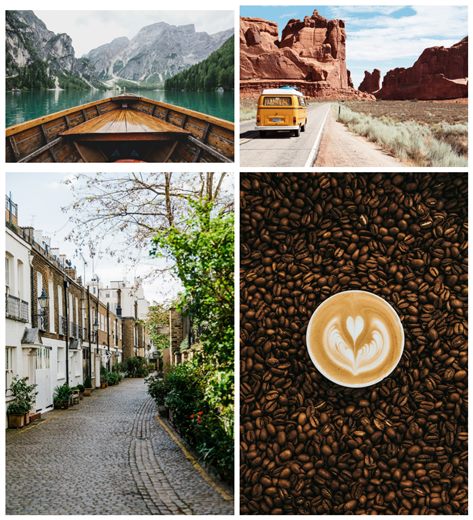 Image mergerCombine images into one picture side by side, vertically, in a grid or freely on the board, and save it as PNG, JPG or WebP.Open the image merger →
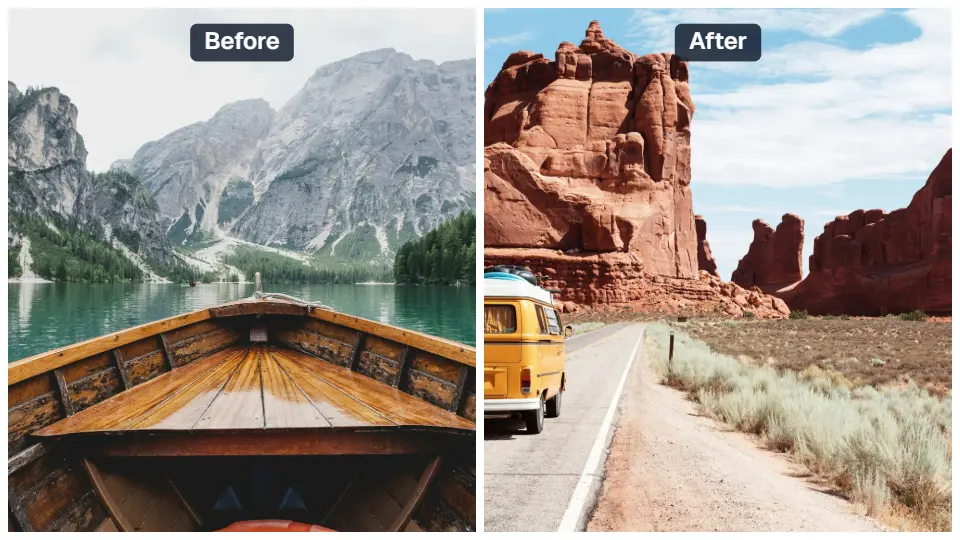 Side by side photo makerTwo photos next to each other, with Before / After labels and sizes for Instagram, Facebook and YouTube thumbnails.Open the tool →